
Background
PathPilot does everything it can to make your life easier. One of its most convenient features is the ability to transfer files over a network, either wired or wirelessly. Once this is setup, you can stop going back-and-forth with those USB drives every time you want to transfer a file. However, as Windows continues to update, you may run into a situation where you mapped drive connection is lost. Below are a few common troubleshooting steps to get you connected again!
SMB Fix
-
On your Tormach controller, open a terminal window by holding CTRL + ALT + X on the keyboard.
-
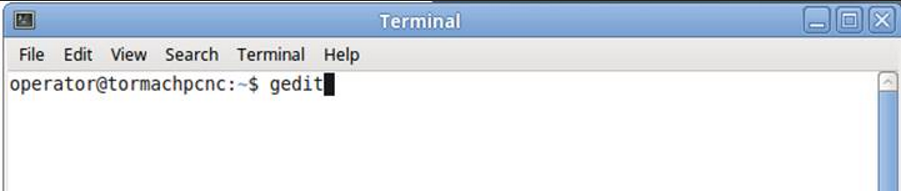
Type gedit and click Enter.
-
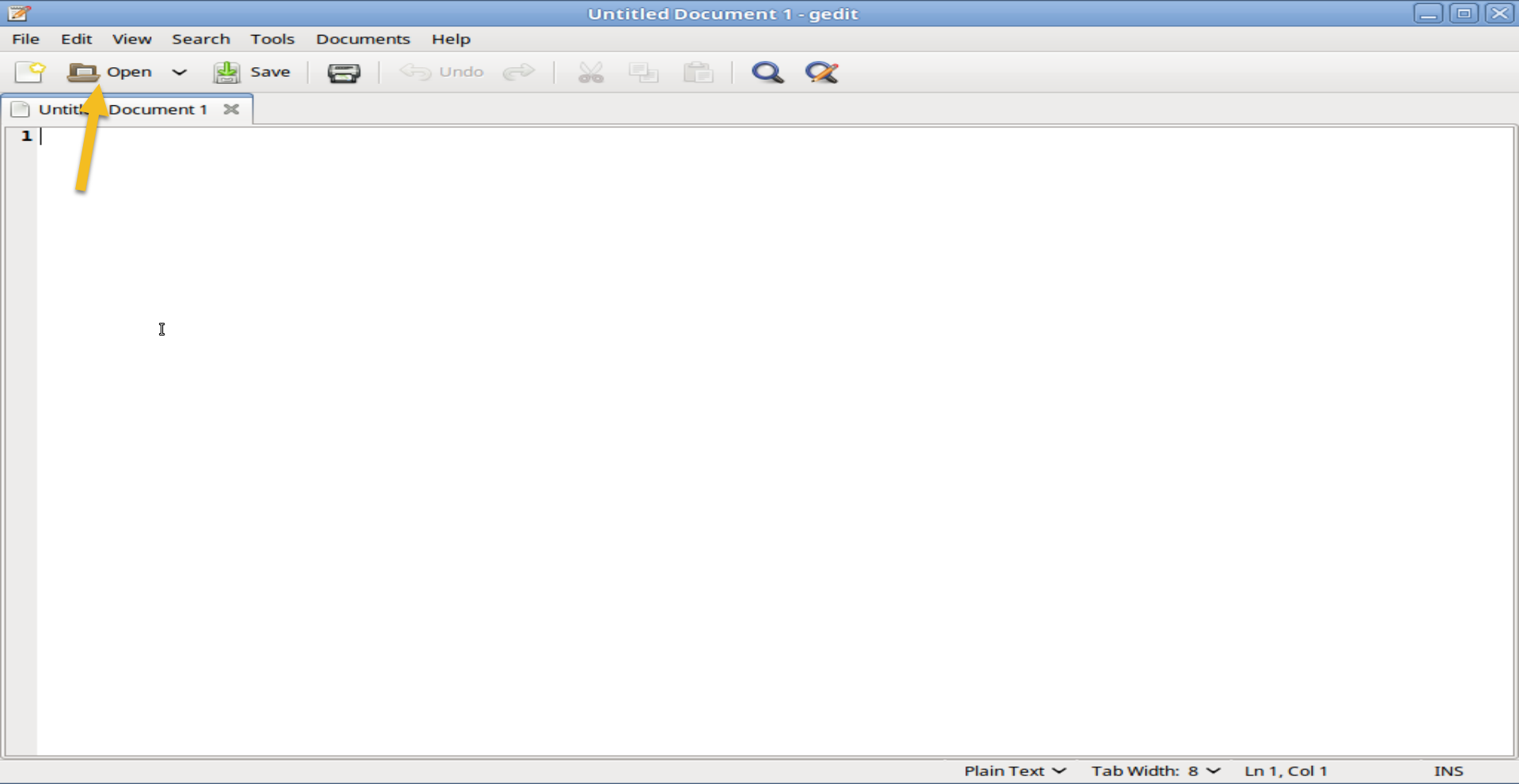
Use the Open button at the top of the screen.
-
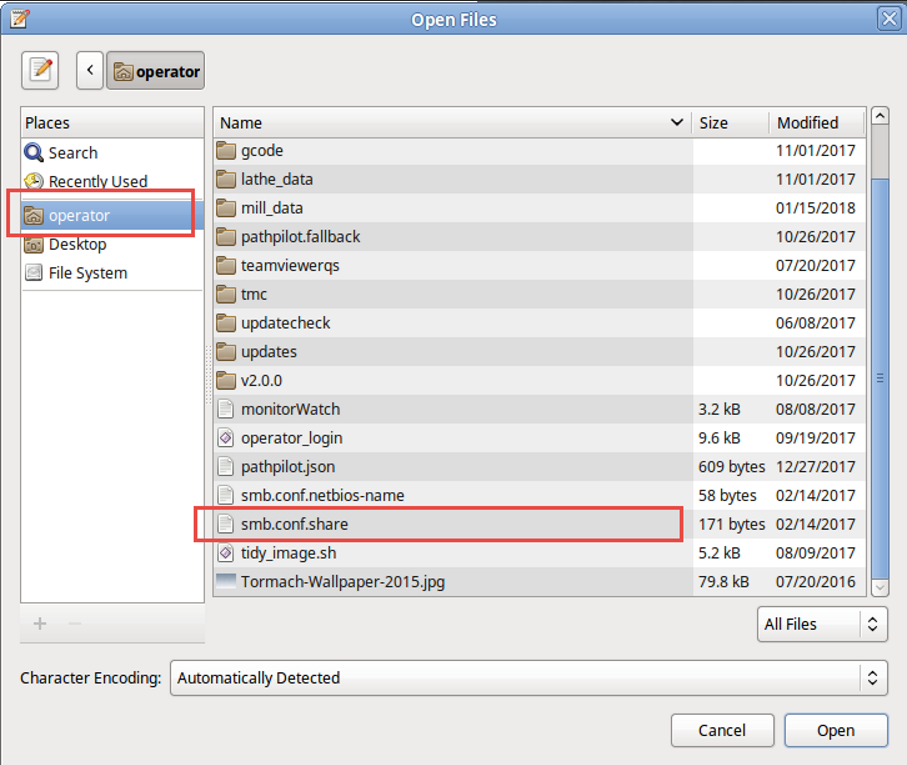
Browse to a file called “smb.conf.share”.
-
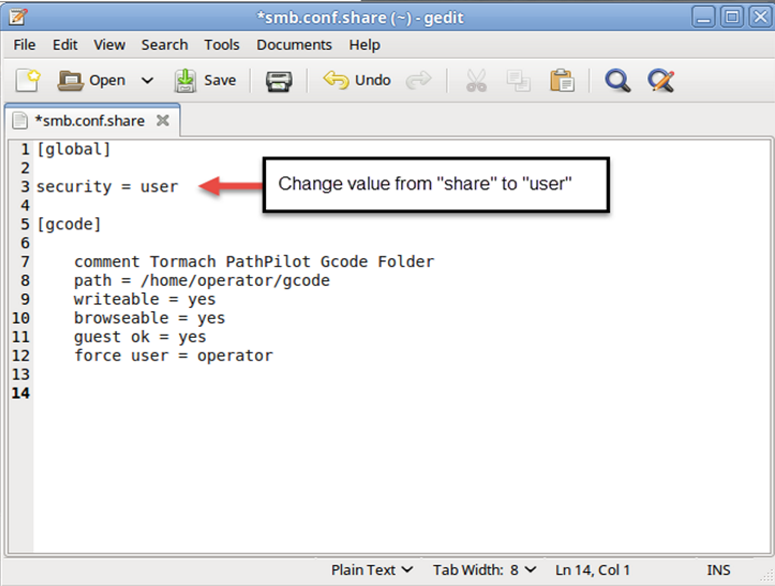
Double click the file name to open it, and then proceed to change “security = share” to “security = user”. Then Save and reboot the PathPilot controller.
If you don’t have “[global]” and/or “security = user” at all, add them both as pictured below.
-
Test your connection to your “gcode” share. If no change is seen, continue on to step #7.
-
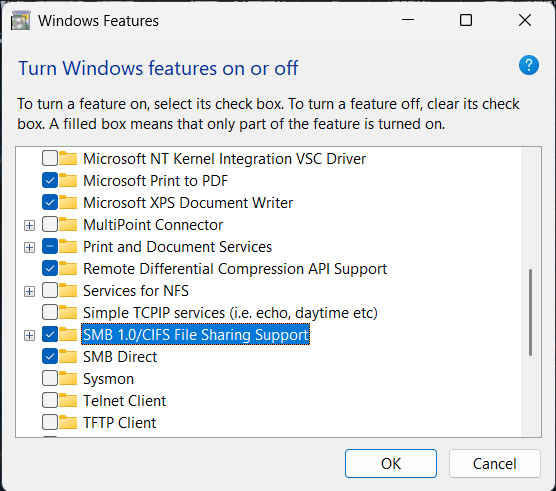
On Windows machines, search for “Windows Features”. From this window, search for SMB 1.0. Make sure this option is checked.
-
Reboot your windows machine, router and modem.
-
Test the mapped drive again. If it still does not work, move on to the next topic.
Connect Using Different Credentials to Map the Network Drive
-
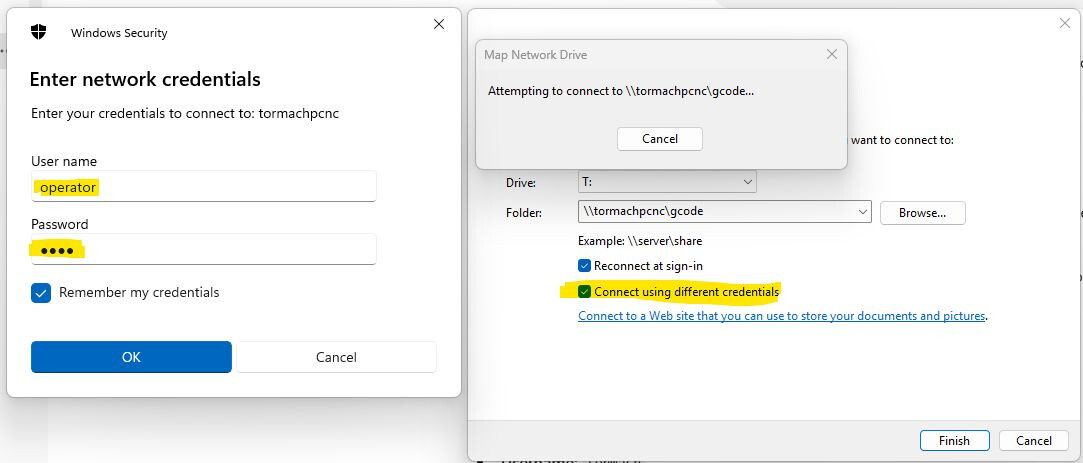
From the Windows machine side, check this option when attempting to map your “gcode” drive.
-
Enter the User name “operator” and the Passwor “pcnc”.
-
If this still does not allow you to map your drive, reach out to Tormach Technical Support, although, it may be needed to contact your networks admin, or a local computer specialist to assist with your personal network setup.