Note: To use the software restore function, you must be over version 2.0 of PathPilot.
-
After the controller turns on, press and release the ‘Shift’ key before PP splash screen.
-
If you see the splash screen (below), restart the computer and try again. You may need to press the ‘Shift’ key multiple times after the boot screen to get the timing right.
-

-
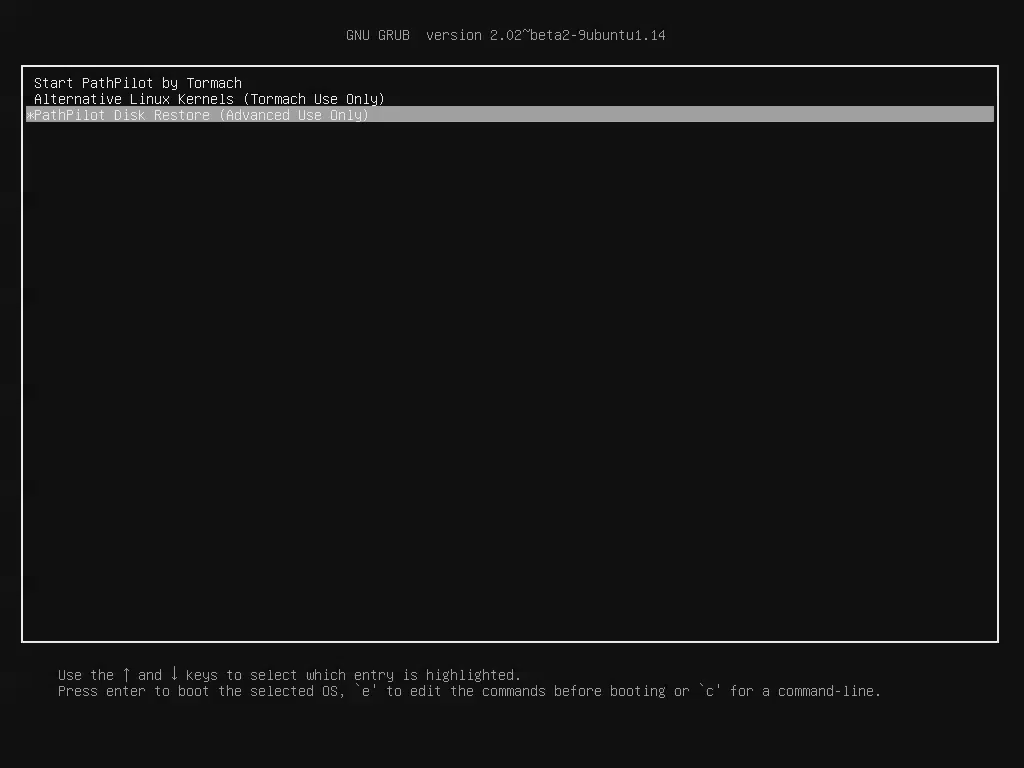
Use the ‘down arrow’ key to select “PathPilot Disk Restore (Advanced Use Only)” and press the ‘Enter’ key.
-
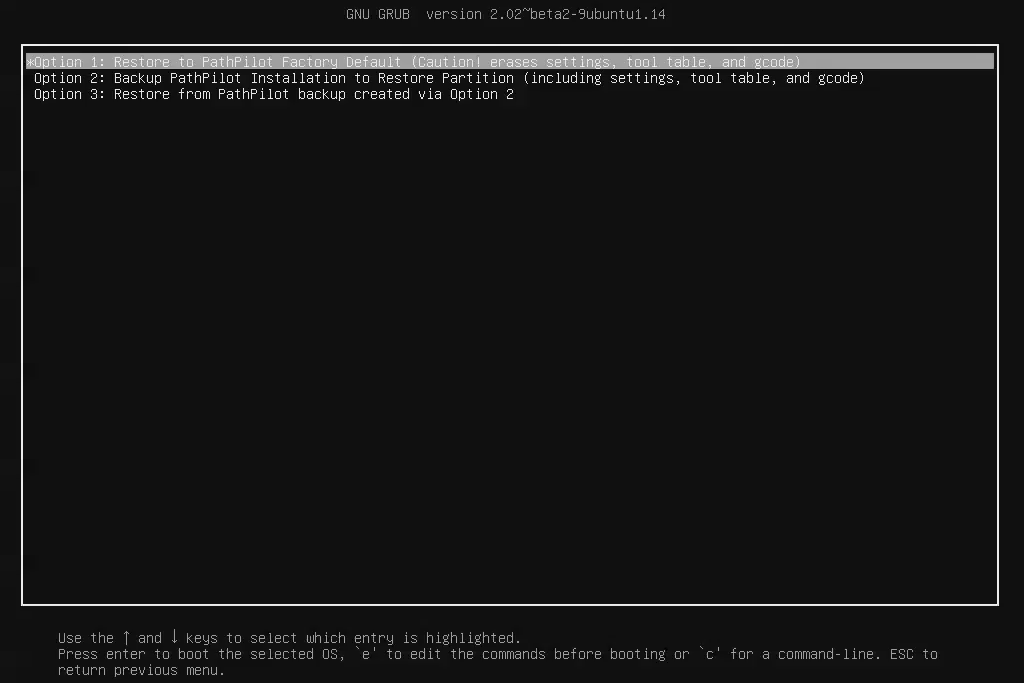
Use the ‘up/down arrow’ keys to select the desired option:
-
“Option 1: Restore to PathPilot Factory Default (Caution! Erases settings, tool table, and gcode)”
-
This option will put PathPilot back into the state when it was first installed. All current settings, offsets, and files will be lost. This includes any custom engraving fonts, thread data, and subroutines.
-
-
“Option 2: Backup PathPilot Installation to Restore Partition (including settings, tool table, and gcode)”
-
This option will ‘clone’ the current PathPilot state and save it to the Restore Partition. This is different than an “ADMIN SETTINGSBACKUP” as it will save all files in the ‘Home’ folder as well as the settings and offsets. This will not affect the factory default restoration option.
-
-
“Option 3: Restore from PathPilot backup created via Option 2”
-
This option will install a previously ‘cloned’ PathPilot state from Option 2 and overwrite the current installation. All current settings, offsets, and files will be lost. This includes any custom engraving fonts, thread data, and subroutines.
-
-
-
Press the ‘Enter’ key with Option 1 highlighted.
-
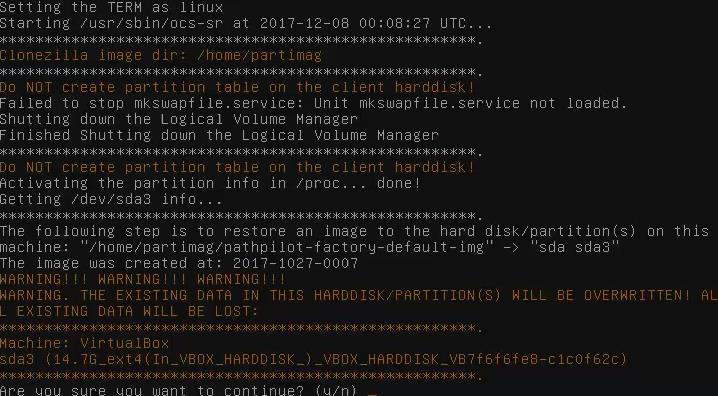
Once the text on the screen stops scrolling there will be a prompt at the bottom of the screen asking “Are you sure you want to continue? (y/n)”. To continue, press the ‘Y’ key and then the ‘Enter’ key. If you wish to abort press the ‘N’ key and then the ‘Enter’ key.
-
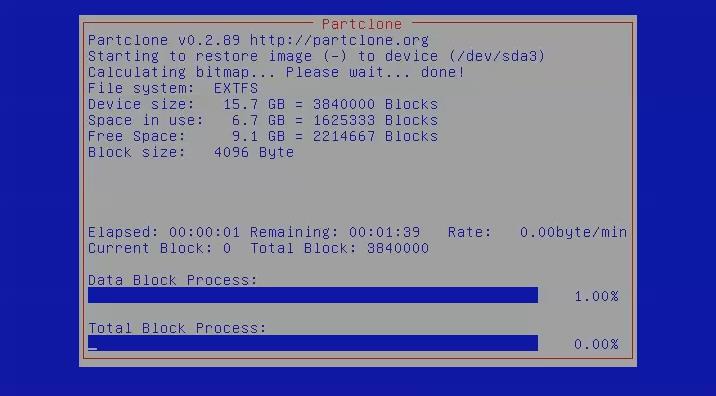
The imaging process will start. Once it is done the controller with restart on its own and boot into PathPilot normally.
-
Imaging progress screen:
-