
Create Backup Files
-
Insert a blank, formatted USB drive into the PathPilot controller.
NOTE: To prevent errors when backing up and restoring files, only use a blank, formatted USB drive. -
From the PathPilot interface, on the Main tab, in the MDI Line DRO field, type ADMIN SETTINGS BACKUP.
Then select the ENTER key.
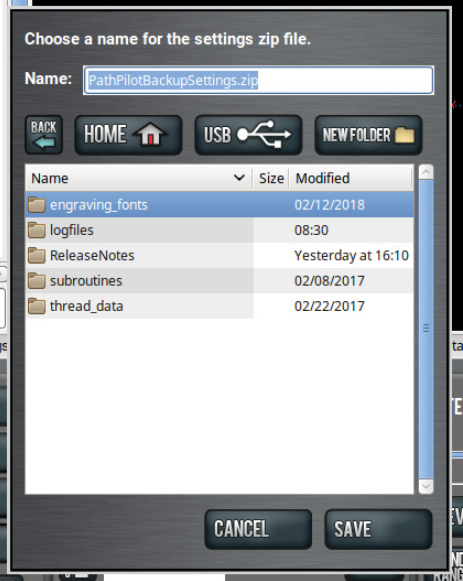
PathPilot generates a backup .zip file, and the Admin Settings Backup dialog box displays.
-
From the Admin Settings Backup dialog box, specify where (on the PathPilot controller or on a USB drive) to save the backup .zip file.
-
Select Save.
The backup .zip file is saved in the location you specified in Step 3. -
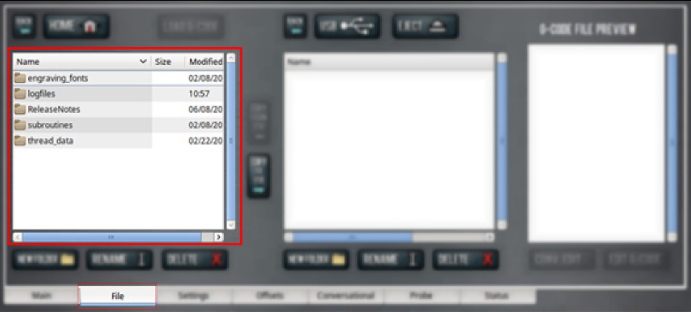
If you saved the backup .zip file on the PathPilot controller, you must transfer it – along with other files you want to backup (like G-code programs) – to a USB drive. From the PathPilot interface, on the File tab, in the Controller Files window, select the backup .zip file and any other files you want to back up.
NOTE: Files must have unique names. If they don’t, PathPilot prompts you to overwrite or rename files, or cancel the file transfer.
-
To prevent errors, make sure you don’t include the following folders:
-
logfiles
-
media
-
ReleaseNotes
-
subroutines
-
USB
-
Select Copy to USB.
The files are copied and display in the USB Files window. -
Eject the USB drive from the PathPilot controller.
-
From the PathPilot interface, select Exit.
-
Verify that all files are properly saved: insert the USB drive on a device other than the PathPilot controller, and review the list of files on the USB drive.
-
(Optional) As an extra precaution, copy all the files onto the device.
About Backup Files
Make a regular backup of all tool offset and fixture information and machine settings stored on your PathPilot controller. Store the file externally to use if you replace your controller or restore it to factory settings.
Restore Backup Files
-
Insert the USB drive with your backup files into the PathPilot controller.
-
From the PathPilot interface, on the Main tab, in the MDI Line DRO field, type ADMIN SETTINGS RESTORE. Then select the Enter key.
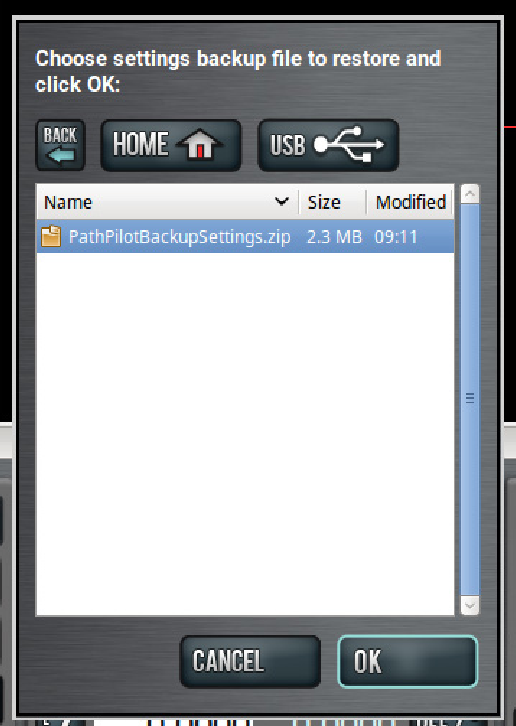
The Admin Settings Restore dialog box displays.
-
From the Admin Settings Restore dialog box, navigate to the backup .zip file on the USB drive, and then select OK. The PathPilot operating system restores the backup, then restarts.
-
If you backed up any other files onto the USB drive, you must manually transfer the files to the PathPilot controller. From the PathPilot interface, on the File tab, in the USB Files window, select the files you want to transfer.
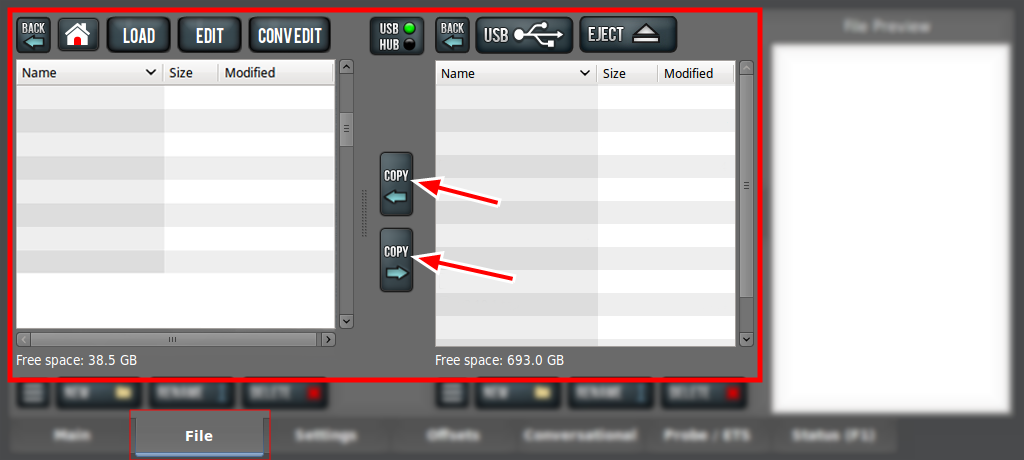
NOTE: To navigate backward, select Back. To navigate to the top level, select USB.
-
From the Controller Files window, select the folder into which you want to copy the files.
-
Select Copy From USB.
The files display in the Controller Files window.
NOTE: Files must have unique names. If they don’t, PathPilot prompts you to overwrite or rename files, or cancel the file transfer.